 Perchy
The short answer
A notch app is as trustworthy as where it comes from and what it asks for. Download it from the developer’s own site, check that macOS says Apple checked it for malicious software (a sign it is signed with a Developer ID and notarized), and give each permission when you turn on the feature that needs it. Never paste a Terminal command from a site you don’t know, and never type a seed phrase or an exchange login into a notch app. This guide is written by the team behind Perchy, a notch app.
The checklist
#- The download comes from the developer’s own site, the Mac App Store, or the project’s official GitHub releases.
- The address is spelled exactly right, and you got there yourself, not through an ad or a direct message.
- macOS opens the app with its standard question and says Apple checked it for malicious software.
- Installing takes a drag to Applications: no Terminal command, no password prompt.
- Each permission is asked when you turn on the feature that needs it, and the app says why.
- The app never asks for a wallet, a seed phrase, a private key, or an exchange or brokerage login.
Where to download it
#Popular Mac apps attract lookalike sites that copy their name and branding. Type the developer’s address yourself, or follow it from a source you trust.
Perchy is downloaded from getperchy.com/download, and updates arrive inside the app from the same place. Our page Is this the real Perchy? lists each release’s SHA-256 hash, so you can check that the file you have is the one we published.
Signing, notarization and Gatekeeper
#Apps from outside the App Store can be signed with an Apple Developer ID, which ties them to a developer Apple has identified, and notarized, which means Apple scanned them and found no malicious software. Gatekeeper, the part of macOS that checks apps when they open, looks for both. The Apple Support page on opening apps explains the messages it shows.
When an app passes, macOS asks whether you want to open an app downloaded from the internet and says Apple checked it. When it doesn’t, macOS says the developer cannot be verified, the app cannot be checked, or the app is damaged. System Settings › Privacy & Security then offers Open Anyway, which Apple says to use for software you trust.
If macOS says it can’t check an app for malicious software, Apple hasn’t notarized it. Some open-source apps ship this way and explain the workaround; decide whether you trust the source before you bypass the warning. For a closed-source app from a site you don’t know, a warning like that is the time to stop.
To check a signature yourself, Terminal’s spctl -a -vv followed by the app’s path reads it without changing anything. For Perchy, the answer names the Team ID WKGAJNMYPW and says it is notarized; the trust page shows the exact lines to expect.
The permissions notch apps ask for, and why
#A notch app can draw the notch and show prices with no permission at all. Features that reach further need macOS to ask you. Here are the permissions notch apps ask for most, what each allows, and what Perchy uses it for:
| Permission | What it allows | In Perchy |
|---|---|---|
| Accessibility | Lets an app control other apps’ windows and post keystrokes. | The window switcher, Face Unlock (typing your password at the lock screen), one-click AirPlay, and keeping the notch clear of menu bar icons. |
| Screen & System Audio Recording | Lets an app capture what is on screen. | Optional: window previews in the window switcher, kept in memory, never saved or sent. |
| Calendars | Lets an app read your events. | The Calendar module, off by default. Events are read on your Mac. |
| Camera | Lets an app use the camera. | Face Unlock, off by default. Frames are analyzed on your Mac and never saved or sent. |
| Bluetooth | Lets an app see Bluetooth devices. | AirPods banners: an audio device’s name, model and battery. Nothing is stored or sent. |
| Full Disk Access | Lets an app read protected files. You turn it on yourself. | Optional, on Pro: reading the Clock app’s timers, without changing them. |
| Automation | Lets an app send commands to another app. | Shuffle, repeat, YouTube Music in a browser and, before macOS 15.4, music controls. |
| Notifications | Lets an app post to Notification Center. | Offered when you save a price alert. |
Prices, the notch and, on macOS 15.4 and later, music need none. Perchy shows no permission prompt by itself when it opens: its welcome tour offers an Allow button for the few features that are on by default, and the rest are asked when you turn them on. Before macOS’s prompt, Perchy says why in one line, and you can choose Not now. Its Privacy Policy lists every permission, including the Downloads folder and Local Network.
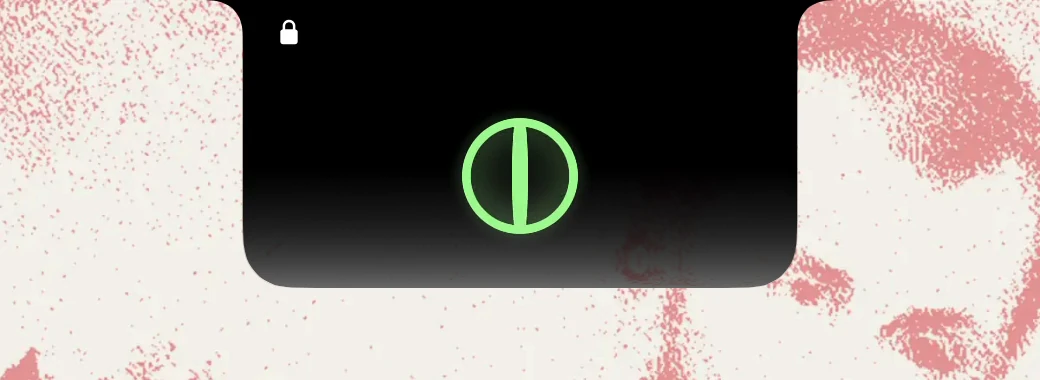
A note on Face Unlock: it uses the camera and Apple’s Vision framework to recognize your face, and it needs a blink. A regular Mac camera has no depth sensor, so it is a convenience, not Touch ID. Keep Touch ID or your password for anything that matters.
How to review and revoke permissions
#- Open the Apple menu › System Settings, then Privacy & Security in the sidebar.
- Click a permission: Camera, Accessibility, Screen & System Audio Recording, Calendars, Bluetooth, Full Disk Access or Automation.
- Turn the switch off for any app you no longer want to have it.
- For alerts and banners, open System Settings › Notifications and pick the app.
In Perchy, Settings › Privacy lists every permission with its state, one line on why, and an Open Settings button. Turn a permission off in System Settings and the feature that needs it switches off and says why, until you allow it again.

Red flags
#- A Terminal command to install or unlock a closed-source app. Fake Mac apps have used copy-and-paste commands to install malware.
- A request to lower your Mac’s protection: allow apps from anywhere, turn off System Integrity Protection, or use Open Anyway for an app you don’t know.
- A password prompt that is not macOS’s own, or any request for a seed phrase, a private key, or an exchange or brokerage login. A notch app that shows prices reads public data and needs none of these.
- Every permission at launch, or a permission that matches no feature you turned on.
- A download from an ad, a direct message, a file-sharing link or a “cracked” copy rather than the developer’s own site.
- A token or coin sold in the app’s name. Perchy has none and never will.
How Perchy handles it
#Perchy is signed with Apple Developer ID by 4Studios LLC (Team ID WKGAJNMYPW) and notarized by Apple. It needs no account to use, has no ads or third-party analytics, and keeps crash reports off unless you turn them on. It asks for a permission when you turn on, or set up, the feature that needs it, and lists them all in its settings. Prices come from public market data; Perchy never asks for a wallet or an exchange or brokerage login.
To compare it with other notch apps, see our roundup or the comparison table. For what it does with crypto and stocks, see Markets and stocks.
Questions
#Is it safe to download a notch app for Mac?
It can be, if the app comes from its developer’s own site or the Mac App Store, is signed and notarized by Apple (or is open source and you trust the build), and asks for permissions that match the features you turn on.
What does “Apple checked it for malicious software” mean?
macOS shows it when an app from outside the App Store is signed with a Developer ID and notarized: Apple scanned it and found no malicious software. It is not a review of what the app does with the permissions you give it.
Should I use “Open Anyway” for a notch app?
Apple says to use it for software you trust. Some open-source apps ship without notarization and explain the workaround; decide whether you trust the source before you bypass the warning.
How do I take a permission back?
Open System Settings › Privacy & Security, click the permission (Camera, Accessibility, Screen & System Audio Recording, Calendars, Bluetooth, Full Disk Access or Automation) and turn the app off. Notifications are under System Settings › Notifications.
Does Perchy need a password or an account?
No account is needed to use Perchy. It takes your Mac password in one place: Face Unlock’s set-up, which you start yourself, and it keeps it in your Keychain.
Sources
#Checked on :
Something out of date? Apps change. Write to support@getperchy.com and we will correct this guide. More guides.